
This is just a quick update to announce another update to my Drop-Down Controls project. By request (and because I always enjoy a challenge), i’ve added custom DataGridView column types for the ComboTreeBox and GroupedComboBox controls. This means that you can now use these controls from within a DataGridView, taking advantage of the automatic support for reading/writing to a data source that comes with it.
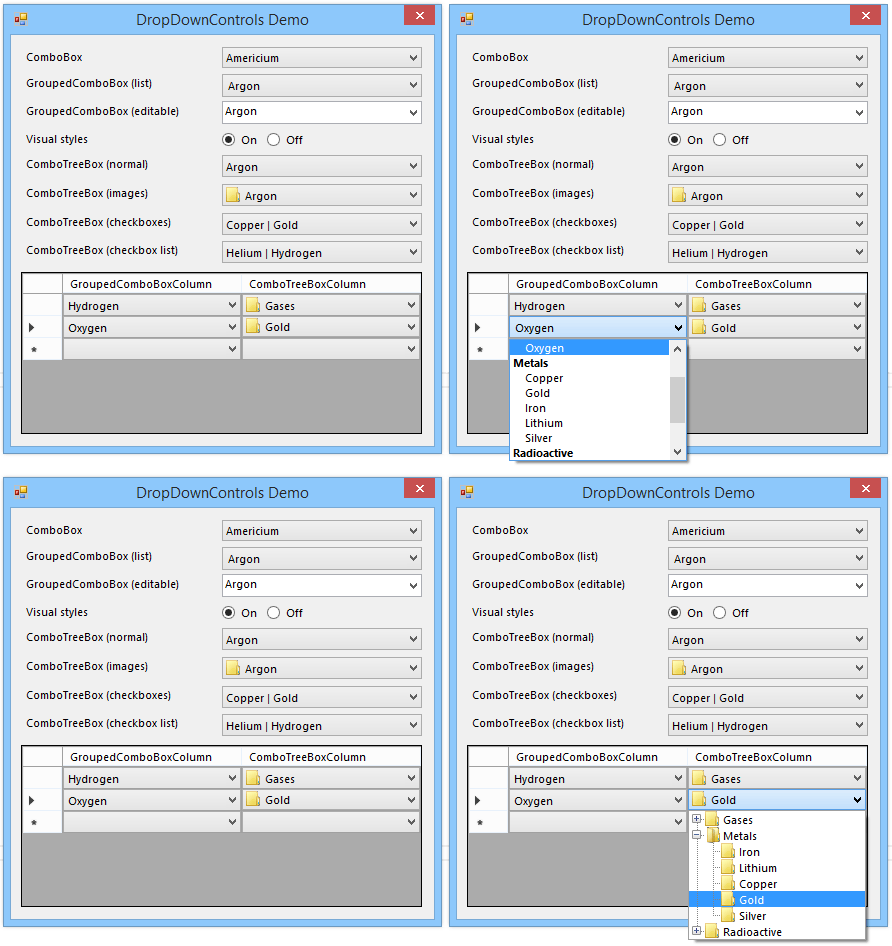
Creating custom column types
The general process for implementing a custom DataGridView column type is as follows:
- Create a class that derives from
DataGridViewColumnthat will represent the column and properties that apply to all of its cells. Be sure to override theClonemethod. - Create a class that derives from
DataGridViewCellthat will represent the individual cells, including any properties that override those inherited from the column. As above, override theClonemethod. You will also need to override thePaintmethod to draw the cell’s “normal” appearance (i.e. when the cell is not in edit mode). In the constructor for the column class, set theCellTemplateproperty to a new instance of the cell class. - Create a class that derives from
Controland implements theIDataGridViewEditingControlinterface, which will be responsible for editing a cell’s value. (Alternatively, the cell can implement theIDataGridViewEditingCellinterface if it provides in-place editing… but this is only useful when the editing UI is very simple.) Override theEditTypeproperty of the cell class to return the type of the editing control. Also override theInitializeEditingControlmethod to set the initial value of the control and set up any other behaviours.
In all of the above, you can use a more derived base class than those mentioned (e.g. DataGridViewTextBoxColumn, DataGridViewComboBoxCell, DateTimePicker, etc). In this case, since I already have controls to use as editors, I will extend those. However, for the column and cell classes, it’s easier to start from scratch.
GroupedComboBoxColumn
The first custom column type I added is based on my GroupedComboBox control. Itself extending the built-in ComboBox control, it behaves very much like the DataGridViewComboBoxColumn. However, because the control does some custom painting and manipulation of the data source, it was easier to implement separately from the built-in column type.
Unlike the built-in column, there is no Items property on this column type. Since the grouping functionality relies on being bound to a data source, it makes sense to do this exclusively via the DataSource property. As with the GroupedComboBox itself, you can set the DisplayMember, ValueMember and GroupMember properties to control how the list items behave. All of these properties are optional (although you will not get the grouping behaviour unless you set the latter one).
You can override all of these properties for individual cells; setting the cell’s properties to null (the default) will cause the values to be inherited from the owning column.
ComboTreeBoxColumn
Secondly, the other column type is based on my ComboTreeBox control. There are various challenges associated with populating hierarchical views from flat lists/tables:
The nodes displayed in the drop-down for this column type must be set manually. As with the previous column type, however, you can override the Nodes property for cells on an individual basis (controlled by the UseColumnNodes property).
In terms of actually selecting nodes, the underlying value type for cells in the ComboTreeBoxColumn is simply String. You select a specific node by its path, the format of which is determined by both the PathSeparator and UseNodeNamesForPath properties. This is also used for the formatted value of the cells. The cell itself can display either the path or the node text, depending on the value of ShowPath. All of this means that the underlying cell values (and therefore the values in the data source for the grid) must be path strings.
e.g. The path string Fruit\Citrus\Orange selects the node with the text “Orange” whose immediate parent node is “Citrus” and whose grandparent node is “Fruit”.
Path strings can be translated to/from ComboTreeNode via the GetFullPath and GetNodeAt methods on the ComboTreeBox control.
Download
The latest version of the drop-down controls can be downloaded from the project page.
How and when do I manually populate the nodes in a ComboTreeBoxColumn
Ideally, you should populate the nodes before adding any rows to the DataGridView; however, in cases where each cell has a different set of nodes, you can populate the nodes at any time before you set the cell’s value.
Here’s a quick example: Assume that you have a DataGridView called ‘dgv’, a ComboTreeBoxColumn called ‘treeColumn’ and this code is located in the form’s constructor:
// populate nodes

ComboTreeNode gases = treeColumn.Nodes.Add("Gases");

gases.Nodes.Add("Helium");

gases.Nodes.Add("Oxygen");
ComboTreeNode metals = treeColumn.Nodes.Add("Metals");
metals.Nodes.Add("Iron");
metals.Nodes.Add("Mercury");
// now add some rows to the grid
dgv.Rows.Add("Metals\\Iron");
dgv.Rows.Add("Gases\\Oxygen");
Note that you can also bind the DataGridView to a data source (DataSet, List, etc) instead of adding rows manually; the values in the ComboTreeBoxColumn will still be set correctly.
Thanks, I’ve managed to get it to work
How do I get it to return the ID value of the selected node, rather than the path value?
Hi Bradley.
First of all a great job , congratulations.
I want to ask if esposible activate the visual effects of GroupedComboBoxCell in DataGridView ?
Can the explanation be enhanced by a practical example?
Many Thanks for your effort
You can find an example in the source code on the project page.
Hi ..thanks for the custom controls…I am trying to use GroupedComboboxColumn in datagrid in vb.net form.However getting the below exception
Dim GrpCombo1 As DropDownControls.GroupedComboBoxColumn
GrpCombo1 = DataGridView1.Columns.Item(4)
GrpCombo1.ValueMember = “value”
GrpCombo1.DisplayMember = “display”
GrpCombo1.GroupMember = “Grp1”
Dim stringlist As New ArrayList
stringlist.Add(“Word”)
GrpCombo1.DataSource = stringlist
:::Exception:::
nhandled Exception: System.NullReferenceException: Object reference not set to an instance of an object.
at DropDownControls.GroupedComboBoxCell.GetFormattedValue(Object value, Int32 rowIndex, DataGridViewCellStyle& cellStyle, TypeConverter valueTypeConverter, TypeConverter formattedValueTypeConverter, DataGridViewDataErrorContexts context)
at System.Windows.Forms.DataGridViewCell.GetEditedFormattedValue(Object value, Int32 rowIndex, DataGridViewCellStyle& dataGridViewCellStyle, DataGridViewDataErrorContexts context)
at System.Windows.Forms.DataGridViewCell.PaintWork(Graphics graphics, Rectangle clipBounds, Rectangle cellBounds, Int32 rowIndex, DataGridViewElementStates cellState, DataGridViewCellStyle cellStyle, DataGridViewAdvancedBorderStyle advancedBorderStyle, DataGridViewPaintParts paintParts)
at System.Windows.Forms.DataGridViewRow.PaintCells(Graphics graphics, Rectangle clipBounds, Rectangle rowBounds, Int32 rowIndex, DataGridViewElementStates rowState, Boolean isFirstDisplayedRow, Boolean isLastVisibleRow, DataGridViewPaintParts paintParts)
at System.Windows.Forms.DataGridViewRow.Paint(Graphics graphics, Rectangle clipBounds, Rectangle rowBounds, Int32 rowIndex, DataGridViewElementStates rowState, Boolean isFirstDisplayedRow, Boolean isLastVisibleRow)
at System.Windows.Forms.DataGridView.PaintRows(Graphics g, Rectangle boundingRect, Rectangle clipRect, Boolean singleHorizontalBorderAdded)
at System.Windows.Forms.DataGridView.PaintGrid(Graphics g, Rectangle gridBounds, Rectangle clipRect, Boolean singleVerticalBorderAdded, Boolean singleHorizontalBorderAdded)
at System.Windows.Forms.DataGridView.OnPaint(PaintEventArgs e)
at System.Windows.Forms.Control.PaintWithErrorHandling(PaintEventArgs e, Int16 layer)
at System.Windows.Forms.Control.WmPaint(Message& m)
at System.Windows.Forms.Control.WndProc(Message& m)
at System.Windows.Forms.DataGridView.WndProc(Message& m)
at System.Windows.Forms.Control.ControlNativeWindow.OnMessage(Message& m)
at System.Windows.Forms.Control.ControlNativeWindow.WndProc(Message& m)
at System.Windows.Forms.NativeWindow.DebuggableCallback(IntPtr hWnd, Int32 msg, IntPtr wparam, IntPtr lparam)
Your data source is a collection of strings, so the ValueMember, DisplayMember and GroupMember properties are invalid. You need to bind the column to a collection of objects instead.
Thanks Brad.
I am able to bind the values but not the Groups with Values. Can you please provide me an example code in vb.net
Thank you so much Brad. I am able to implement the groupcomboxbox in datagrid. I am able to bind the group with values.
Hello, please how to test if ComboTreeBox (Check list) dasen’t have any checked item
I try .text=”” dont work, thank you
Use the CheckedNodes property. If the sequence is empty then there are no checked items.